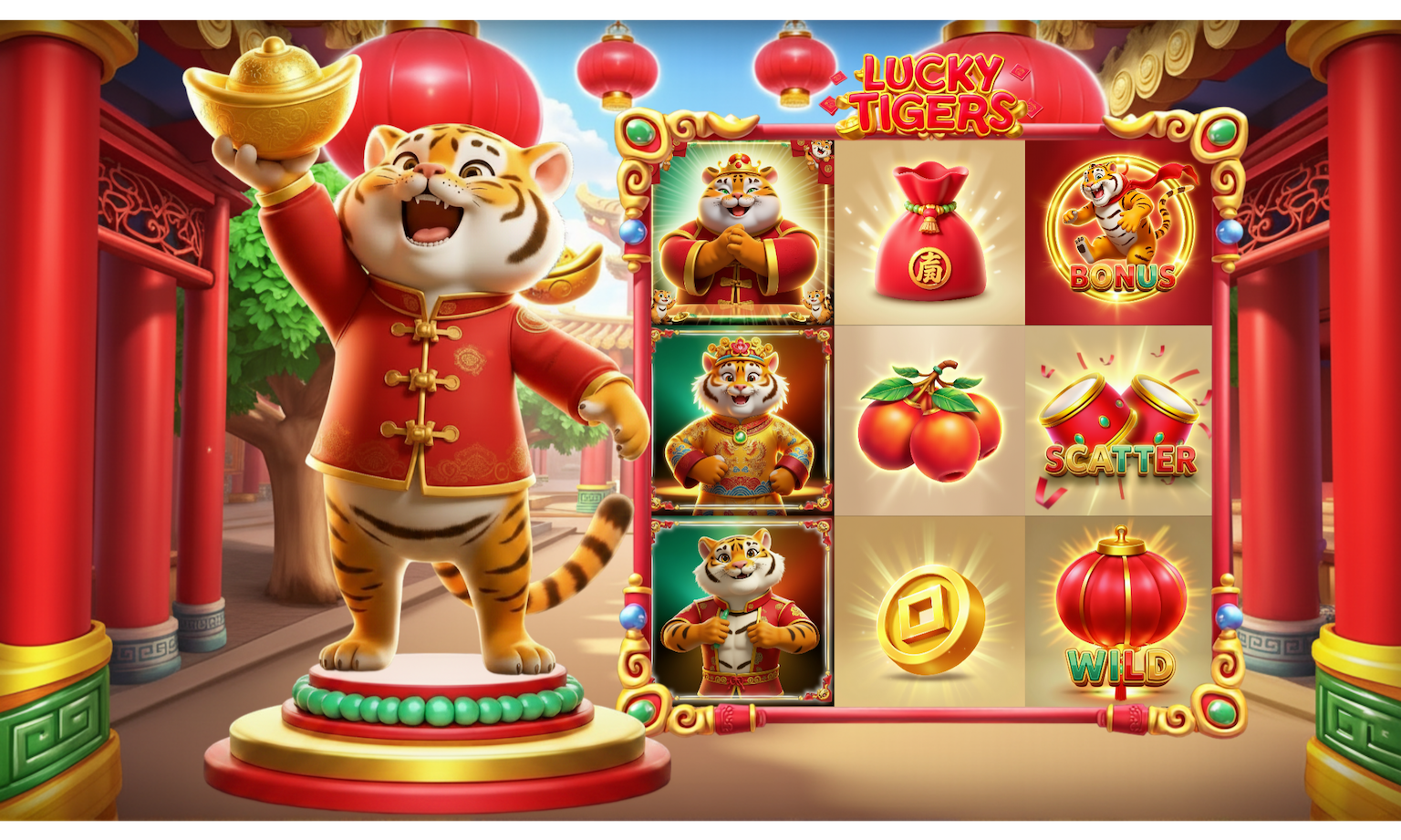
Want to make your own version of the popular Fortune Tiger Slot game using AI? Use Slots Studio to
In this tutorial post, we will walk you through this step by step. Sign up for your free Slots Studio account right away and follow along!
When you create a New Game in Slots Studio, you will be presented with various inputs such as Theme, Game Title, Style Guide, Style Model and more. Give it a catchy Game Title, like 'Lucky Tigers'. Then, describe the theme such that it will give the model a sense for the overall game's setting and feel. Since we know what symbols we want in this game, we can describe those as part of the theme.
So this would look like: Lucky Tigers is a festive Chinese theme set in a bright ceremonial courtyard where golden ingots, red envelopes, firecrackers, lucky bags, and fresh mandarins bring prosperity, while cheerful tiger mascots appear as wild symbols.
This is a very important step, because it will allow us to generate our images in the specific art style we are going for. When you click the Style Model input, you will see that there are plenty of styles to choose from and according to their previews you can see what is the most fitting for the theme you're after. For this theme the most ideal style is the Soft 3D Volumetric style, judging by the art style of the Fortune Tiger game.
This step together with the Style Model selection determines the finer details of the art style and how your game will look in its final form with all the symbols. To decide this, think of the following: What is it that is attractive and pops out in the symbols/characters/layout elements? Describe the style in keywords, because the more, the better. More details the app has, wthe more precise the outcome will be. So for this one it can be: highly polished 3D cartoony slot style, chunky rounded forms, glossy materials, soft shading, bright saturated reds and golds, jade accents, clean beige reel background, subtle depth, playful and premium mood with soft ambient lighting and gentle shadows.
Now select how many of each symbol type you want and create the game!
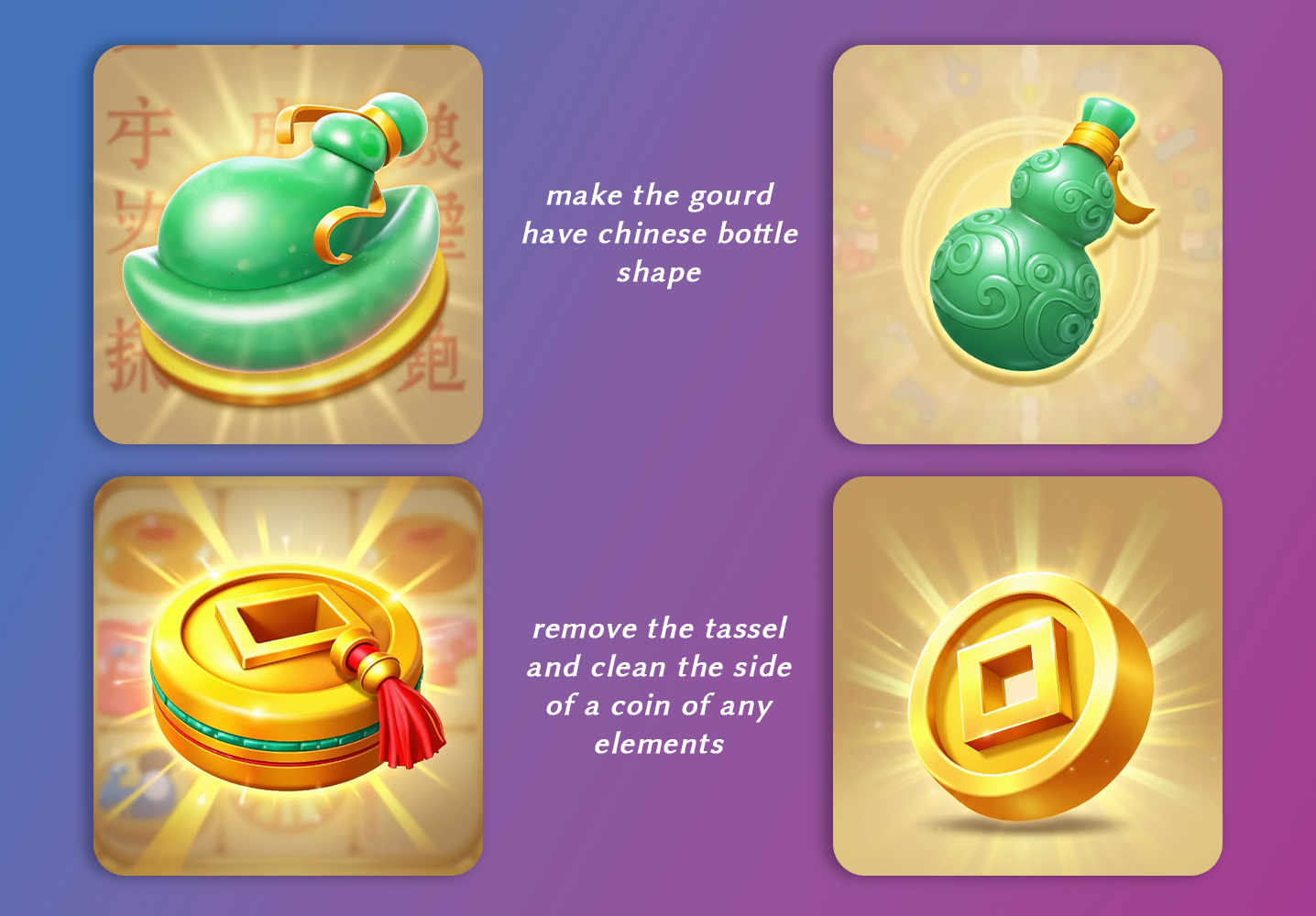
Ok, now that we have a set of symbols and characters based on our input description of the game, it is time to make minor adjustments to make sure that the art looks exactly like we want! You will see that every image created in Slots Studio can be opened by clicking on it, to reveal a ton of additional information! You can see the prompt that was used to generate the image, in the input panel on the right. You can modify this prompt if you want and regenerate the image. Or you can simply click regenerate to see a different variation of the image using the same prompt.
But want to hear the coolest AI trick? Slots Studio allows you to make micro edits on any image by simply clicking on the 'pencil' icon over the image. In the window that pops up, you can give instructional inputs like "Change the angle", "Make this blue", "Make the character look angry" and much more. These edits ensure that the overall image stays the same, with only the minor adjustments that you have requested. One simple micro edit can get the symbol to look a hundred times closer to what you want, whether it's an angle of composition, color, background or even shape. Notice that you can also provide reference images while making these minor edits. You can then say things like "Change the art style to look like this image" or "Add the object in this image to this symbol" and so much more. The possibilties are endless!
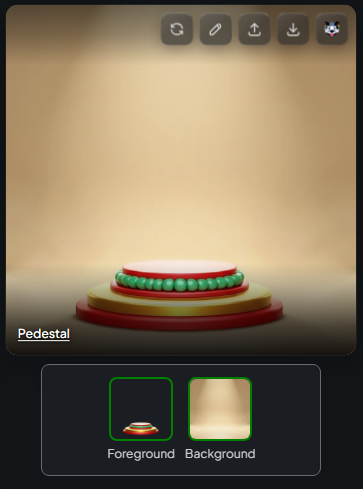
Not every image is going to be a slot symbol, obviously. You need additional images to place next to the reel frame, or somewhere in the UI. Pedestals, Multiplier Assets like pots and treasures on the sides of the reel frame, visually striking elements that would make your game pop out and much more.To do this, click 'Add Element' and then select 'Other' element type. These images won't appear in your reels. You will be able to add them to your game canvas yourself.
.png)
Once you have determined that you got all the images you need you can start composing your game on our ground-breaking Playable Canvas. Click the 'Preview' tab to see the Canvas, where you will already have a version of your game populated. Play around with the layers or click 'Add Element' to add more images to your game preview. Did you notice that you can actually play the game in this preview?? Plus, you make multiple scenes to vary things like the aspect ratio of your game, try different UI arrangements and much more. (Note: You can make both mobile and desktop ratios in one single game by simply choosing the corresponding background aspect ratios at game creation time, and then selecting that background option on the Playable Canvas.)
Fine tune the reel sizes, bring your character to the back, place the reel frame on the pedestal, pop that Game Title on top and you are flawless!
If for a certain preview scene, you have decided that you would like to change how some symbols look, you can do it right there on canvas too! Just double click the symbol and make micro edits, choose the layers that should be visible and you're good to go!
.png)
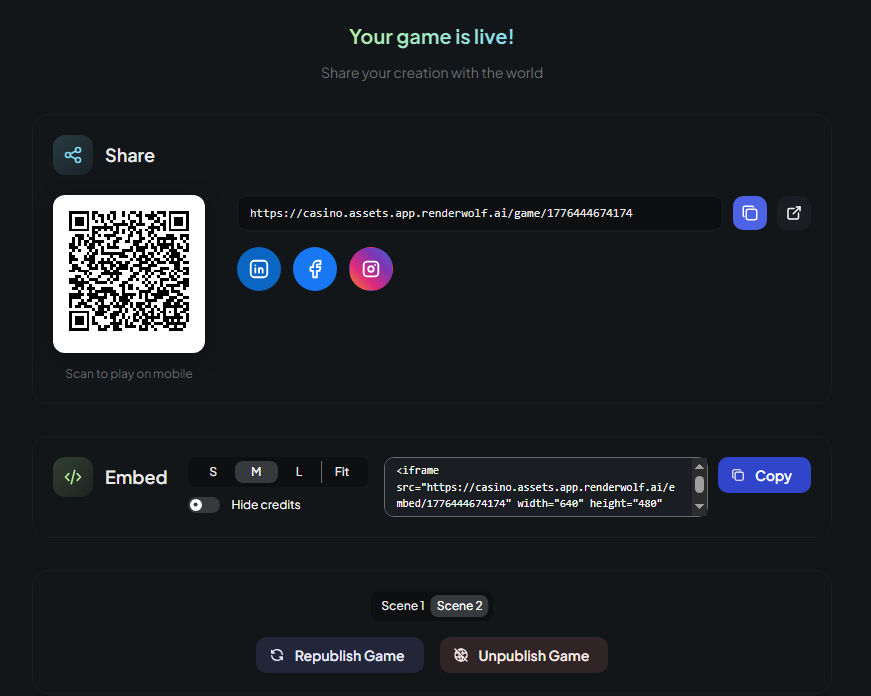
Take a good look at the game on the Preview tab. You can always return to Design tab to create additional elements or make edits, if you think something is missing for the complete game. Don't forget to save the layout whenever you think it's done. Finally, go to the Publish tab to publish your game and share a link with friends! You can also download all of the images you created by going to the 'Download' tab.