Using AI to create game UI text can be tricky. A game user interface needs text that is not only visually appealing, but is also consistent across the game! Something that AI often gets wrong. In this post, we will use the example of a Slot Game to show you how you can add consistent looking text all across the game.
If you are not familiar with how you can make slot games using Renderwolf's AI tools, head over to our other posts like this one right away!
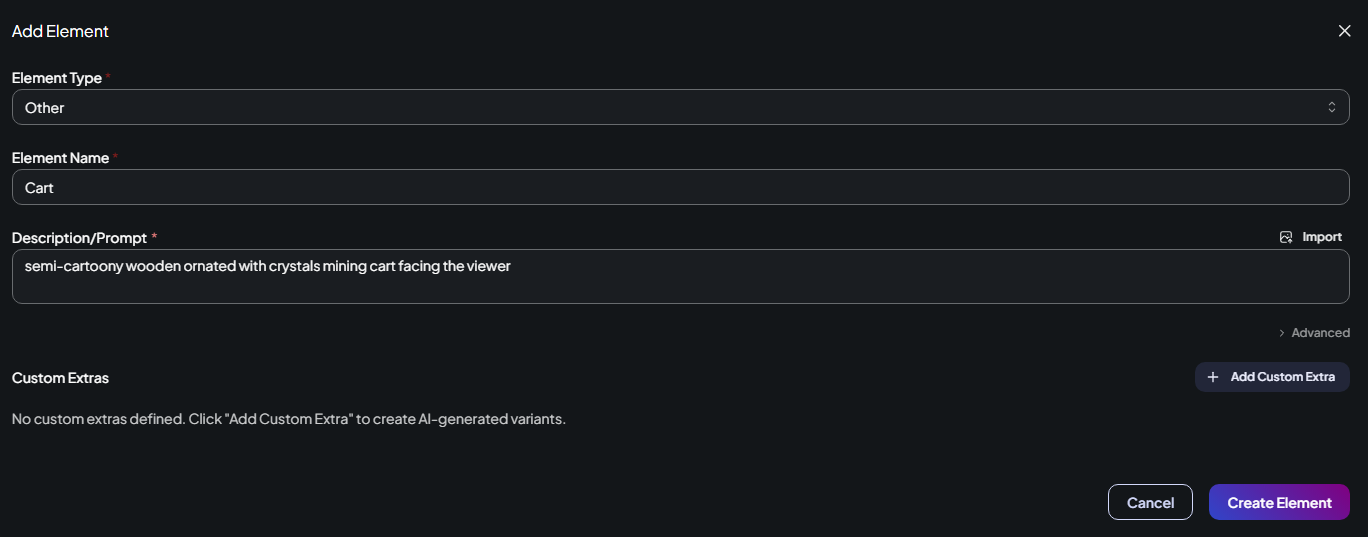
Ok, now that you have created a new slots game, let's start adding that UI text. In this example, we are going to add not only the text, but also a backdrop for that text. Our example Slot Game is a gems-themed one, with mining motifs, such as caves, trolleys and more. We will pick a trolley as our backdrop image. But you can choose anything from actual collection images next tothe reels, such as pots, bags, pouches or boxes. Or you can just use simple plaques, buttons and so on.
To create the Trolley backdrop, head over to the Design tab. Click “Add Element”, then select “Other” Element Type and describe your asset. You might want to specify the aspect ratio if you want certain shape for example creating an ultra wide ui button asset or you can change the style if you don’t want the default game style to be applied to the asset. All that can be done in “Advanced” options right under the prompt field before you generate your “other” asset. Remember that you can always change it in the symbol menu down on the right as well through the same “Advanced” option. You can use the “Skip prompt upsampling” too if you want the asset not to be heavily affected by the theme and game mood, that usually results in more generic and clean design. Also a small tip, the less busy background for the text overlay is - the better it looks with text combined. Clean and slick, easy to read and visually appealing.
Trolley element to use as our text backdrop
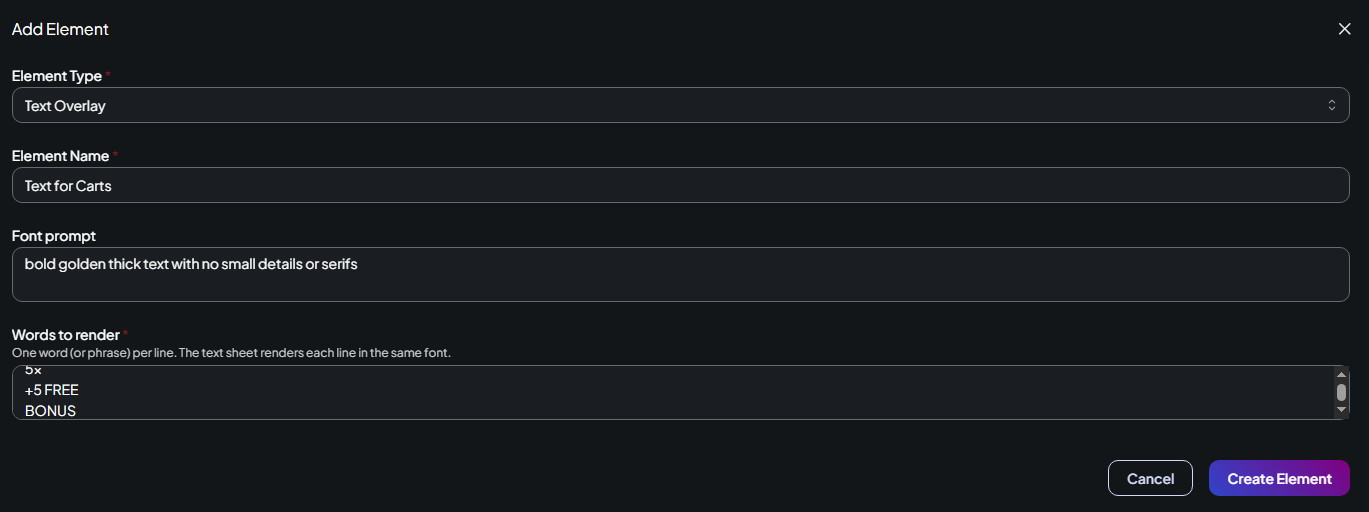
Now that we have a backdrop for the text we need to think of how the text would look like on it. We are going to use the 'Text Overlay' Element Type for this. Click “Add Element” and then select "Text Overlay" element type. This element type is specifically built to generate consistent text using AI. It lets you specify multiple lines of text to use in different parts of the game, as well as what all this text should look like.
Give a name to your Text element, and then use the "Font Prompt" input field to specify the style of your text. Remember that for the better readability the text should pop out so we don’t want to place bright golden text overlay on same bright button or pot. High contrast is the key here. Also if your text overlay size on a certain element is not planned to be big it’s better to have it chunky, bold, plain textured and with no serifs to make sure it’s readable.
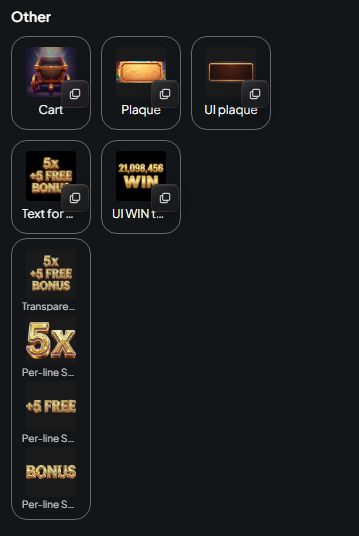
After specifying the text style enter your desired text overlay in the “Words to Render” field. Here is the neat trick - you can create multiple lines of text using just one element! This ensures that all these lines of text look the same visually. Later, you will be able to download each line separately, as the app handles that for you. In this example, we are going to add the lines "5X", "+5 FREE", and "BONUS"
After getting the result make sure the text looks exactly how you wanted. You can make minor edits to it by “Edit image with AI” option and fine tune it.
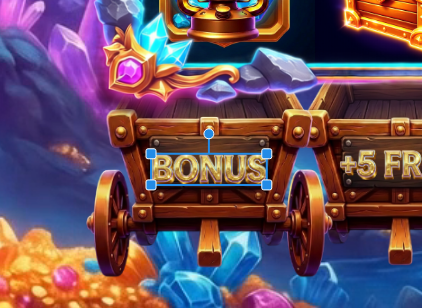
After extras have been generated head over to the Canvas Preview tab to start composing your UI. Place the backdrop assets on the canvas by clicking on them from the panel on the right. Then place newly generated text overlay on top of them from the same panel. In this example, we are going to place the trolley backdrop image on the canvas, right under the reels, and then place each line of text on a different trolley.
Select images to place on the Canvas, from the right-side panel
Lay out your text on top of the backdrop using the Canvas
The final game canvas with all the trolleys and their text!
And that's it! That’s how you add the text overlay to the game! Take a look at our games gallery, to see many many more examples of text UI elements on other games.